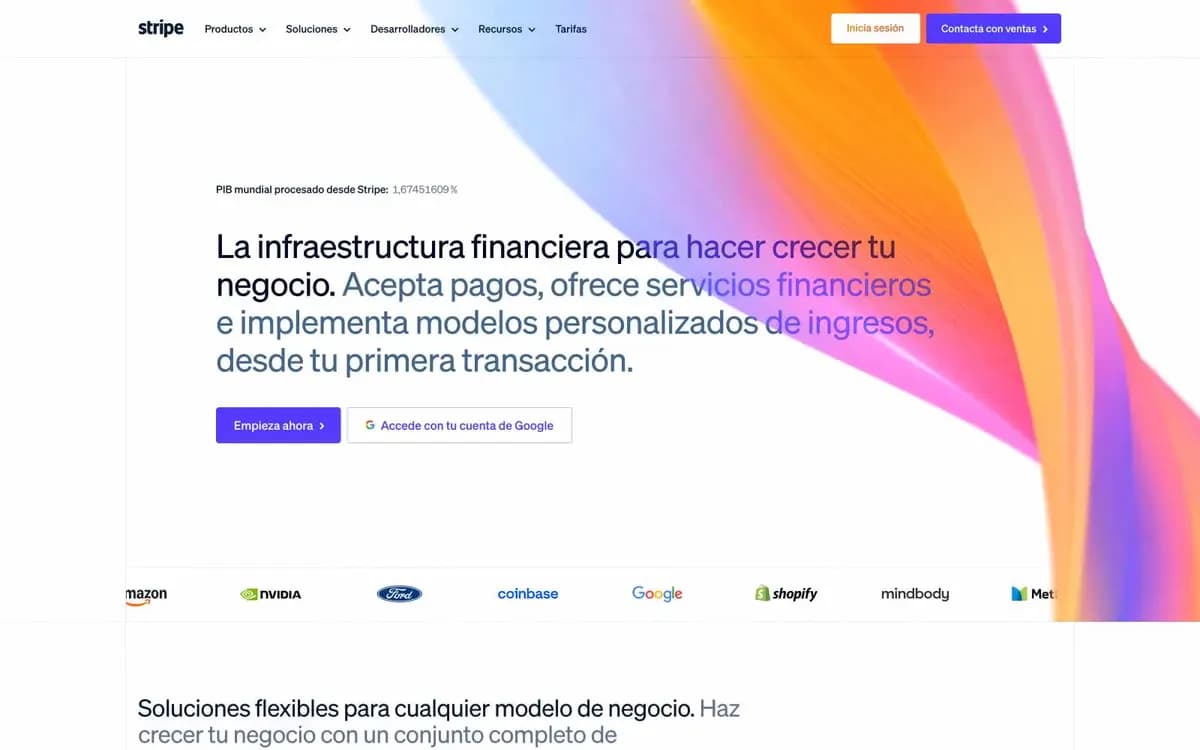
We built GradientDeck UI because of one kind of prompt that kept letting us down: make it look like Stripe. Or Linear, or any site we admired. The agent clearly knew the site. What came back was in the right neighborhood, a light page with a purple accent and tidy sections, but nobody who knows Stripe would have mistaken it for Stripe. The parts that make the site feel the way it does were missing.
Those parts are small and specific, and a site's name doesn't carry them. This article shows what they are, using a real DESIGN.md from the library, and how to give them to your agent.
What a name carries, and what it doesn't
A name gives the agent an impression: clean, purple, trustworthy, professional. It doesn't give it decisions. Which font weight? Which corner radius? Where is the purple allowed, and where is it not? How are sections separated? The agent has to answer every one of these, and when it guesses, it picks the most common answer. The most common answer is the generic page you were trying to avoid.
Nothing in the prompt stops the agent from adding a soft shadow, a fully rounded button or a bold headline. Those are exactly the things this design avoids.
What the Stripe file spells out
Here are some of the details from Stripe's DESIGN.md in the library. Each one is a place where an agent would otherwise guess.
- Headlines are weight 300, even at 56px. The file describes it as headlines that “whisper instead of shout”. Left alone, agents usually reach for 600 or 700.
- Letter spacing tightens as type gets bigger: -0.01em up to 26px, -0.02em from 32 to 48px, and -0.025em at 56px.
- There is one indigo, #533afd, and it is only for buttons, links and icon strokes. Never body text, and never large areas.
- Buttons, inputs and cards all have 4px corners: “never pill (too friendly), never 8px+ (too soft)”.
- There are no shadows anywhere. Depth comes from steps of tint: white, then #f8fafd, then #e5edf5.
- Sections are separated by a 1px #e5edf5 rule and 96px of space, not by colored bands or cards.
- Tabular numbers are switched on, so figures line up in prices and stats.
- A filled button is always paired with an outlined one, whose lavender border is deliberately lighter than its text.
None of this is in the words make it look like Stripe. Put together, it is most of what makes the page feel like Stripe.
Two “clean, dark” sites are not the same
The problem is worse with sites that share an impression. Describe Linear and a dozen other developer tools as dark, minimal and clean, and an agent will build one page for all of them. Linear's file records what tells it apart: weights held between 400 and 590 and never bold, a monospace face kept for issue IDs and keyboard shortcuts and never used for headlines, thin borders doing the work that shadows do elsewhere, and cards no rounder than 12px.
These are the details people notice without being able to name them. They are also the details a short prompt leaves out.
What is in each file
Each DESIGN.md is measured from the live site and then written up so an agent knows what every value is for, not just what it is.
- Colors, each with a role. For example: Slate #64748d is for labels and captions, “not for paragraphs”.
- Typography: families with free substitutes, weights, sizes, line heights, letter spacing and OpenType features.
- Spacing and layout: the base unit, maximum page width, section gaps, card padding and radius for each kind of element.
- Components: what each button, card and navigation element looks like and when it is used.
- Do's and don'ts written as rules an agent can check.
- Surfaces, depth, imagery and overall layout, plus similar sites.
Every file comes in two versions. Compact covers the essentials. Extended adds token tables, a guide to prompting with it and a quick start. You can also export a design as Tailwind v4, CSS variables or design tokens JSON.
How to use one
- Find a site whose design suits what you are building.
- Save its file as DESIGN.md at the root of your project, by copying it or with the command below.
- Point to it from your agent's rules file: AGENTS.md, CLAUDE.md or .cursor/rules.
- Ask for the page as usual, and ask the agent to say which values from the file it will use.
curl -o DESIGN.md \
https://ui.gradientdeck.com/styles/stripe/design.md## Design
Follow DESIGN.md for colors, type, spacing,
corner radius and components.
Use its values as tokens. Don't add colors,
font weights or shadows it doesn't list
without asking.
Where DESIGN.md names a substitute font,
use the substitute.
If you need to depart from it, say where
and why.Then a request can stay short. Build the pricing page following DESIGN.md, and before writing code, list the colors, type sizes and components you'll use from it. That list shows straight away whether the agent read the file.
Make it yours, not a copy
A DESIGN.md is a lesson in how a set of decisions fits together. It is not a brand to take. Use it to start your own product's system:
- Keep the structure and swap the identity. Use your own accent color in the indigo's role, with the same restraint.
- Use your own logo, words and pictures. Never copy another company's logo, illustrations, photos or copy.
- Use the substitute fonts. Many of these sites use licensed typefaces, and each file names a free alternative, such as Inter Tight for Stripe's headline face.
- Credit what inspired you if you like. Every style in the library credits the site it was captured from.
What a file can't do
A DESIGN.md is measured from a site's public pages, and the roles are interpreted from how each value is used. It describes a look; it doesn't know your content, your audience or what your page needs to do. Your agent still has to decide the structure, and you should still look at the result in a browser at desktop and phone widths.
This is where GradientDeck Skill helps. It treats a DESIGN.md in your project as the authority over its own taste, follows it closely, and uses its own judgment only for what the file leaves open: page structure, copy, states and the final check.